
Telegram Post Editor
Free desktop app for composing, formatting, and publishing posts to your Telegram channels. Works standalone — no server required. Built with Tauri for native performance.
Also available as a Telegram Mini App
Don't want to install a desktop app? The Mini App version runs inside Telegram on iOS, Android, Telegram Desktop, and Telegram Web — same formatting engine, same Telegram-accurate preview.
Open in seconds
Open @tgpe_editor_bot and send /app — no install, no signup. Theme and language follow your Telegram client automatically.
Drafts that travel
Auto-saved to Telegram CloudStorage — pick up the same draft on your phone, your desktop client, or the web. localStorage fallback for older clients.
One-tap share
shareMessage posts to any chat or channel with formatting and media intact. Older clients get a "Copy as MarkdownV2" fallback.
When to choose desktop instead: managing multiple channels, MCP integration with AI assistants, or self-hosted server mode.
Why Telegram Post Editor?
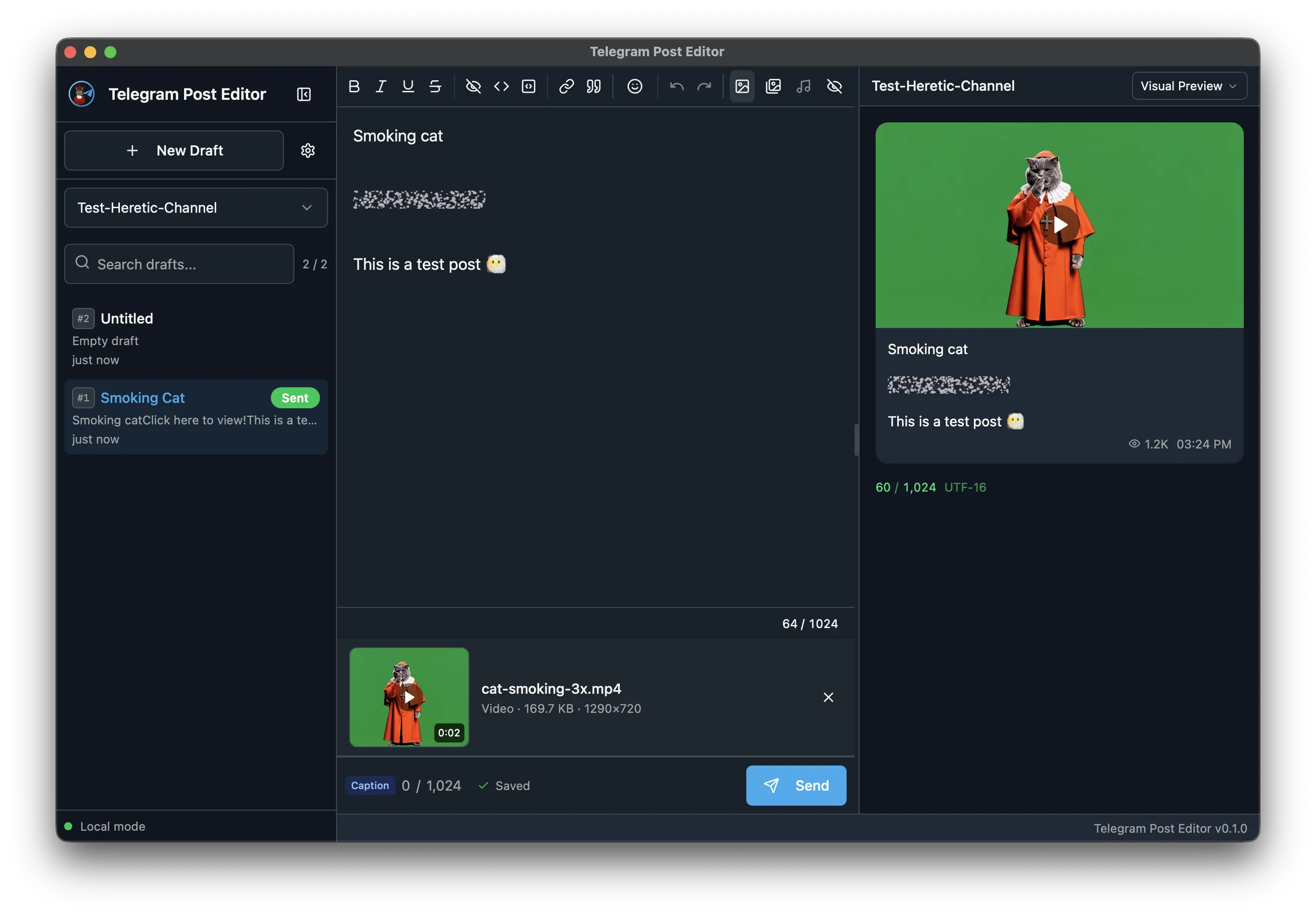
Managing a Telegram channel means wrestling with Telegram's limited editor, losing drafts, and switching between tools. Telegram Post Editor gives you a dedicated workspace for writing, formatting, and publishing — all from your desktop.
Write & Format
Rich text toolbar with bold, italic, underline, strikethrough, spoiler, monospace, code blocks, and links. Markdown shortcuts for speed.
Preview Instantly
Side-by-side live preview that matches how your post will appear in Telegram — including formatting, links, and entity rendering.
Publish Directly
Connect your Telegram bot and publish to any channel with one click. Multi-channel support with separate bot tokens per channel.
Key Features
Rich Text Editor
Full-featured editor built for Telegram's formatting model. Toolbar buttons and keyboard shortcuts for all supported entity types:
| Format | Shortcut | Description |
|---|---|---|
| Bold | Cmd/Ctrl + B | Strong emphasis |
| Italic | Cmd/Ctrl + I | Light emphasis |
| Underline | Cmd/Ctrl + U | Underlined text |
| Strikethrough | Cmd/Ctrl + Shift + S | Crossed-out text |
| Spoiler | Cmd/Ctrl + Shift + X | Hidden text revealed on tap |
| Inline code | Cmd/Ctrl + E | Monospace inline |
| Code block | Cmd/Ctrl + Shift + C | Multi-line code with optional language |
| Blockquote | Cmd/Ctrl + Shift + . | Quoted block |
| Expandable blockquote | Cmd/Ctrl + Shift + , | Collapsible quote (Show more) |
| Link | Cmd/Ctrl + K | Insert / edit link |
| Send | Cmd/Ctrl + Enter | Publish post to selected channel |
| New draft | Cmd/Ctrl + N | Create a new draft |
| Force-save | Cmd/Ctrl + S | Save current draft immediately |
| Settings | Cmd/Ctrl + , | Open Settings |
| Toggle preview | Cmd/Ctrl + Shift + P | Show / hide preview panel |
Live Preview
Real-time preview panel renders your post exactly as it will appear in Telegram. Every formatting change reflects instantly — no guessing, no surprises.
The preview panel has four format tabs: Preview (rendered bubble), HTML (raw export), MarkdownV2 (copyable Telegram MD2), and Entities (raw MessageEntity[] JSON). Character count uses UTF-16 code units to match Telegram exactly, with color thresholds at 80% / 95% / 100%.
Media Attachments
| Mode | Limit | Caption |
|---|---|---|
| Text only | — | up to 4096 characters |
| Single | 1 photo (10 MB) or 1 video (50 MB) | up to 1024 (4096 with the Telegram Premium toggle in Settings) |
| Album | 2–10 photos / videos, drag to reorder | one shared caption |
| Audio | 1 audio file, 50 MB (MP3 / M4A / AAC) | sent as a separate audio message |
Photos accept JPG, PNG, GIF, WebP. Videos accept MP4, MOV. Removing the last item in an album returns to text-only mode.
Draft Management
Save unlimited drafts locally. Switch between posts, pick up where you left off. All drafts are stored in a local SQLite database on your machine.
Multi-Channel Publishing
Connect multiple Telegram channels, each with its own bot token. Select the target channel and publish in one click.
MCP Integration — Let AI Write Your Posts
Telegram Post Editor includes a built-in MCP (Model Context Protocol) server that connects to AI coding assistants. Your AI agent can list, read, create, update, and delete drafts directly.
Supported AI tools:
Claude Desktop / Claude Code
Add the MCP server URL to your config and Claude can compose, edit, and manage your Telegram drafts.
Cursor / GitHub Copilot
Works with any MCP-compatible AI tool. Configure the HTTP endpoint and start delegating post writing to AI.
Available MCP tools:
| Tool | Description |
|---|---|
| list_drafts | List all drafts with numeric IDs |
| get_draft | Get a specific draft by UUID or numeric ID |
| get_current_draft | Get the currently open draft in the editor |
| create_draft | Create a new draft |
| update_draft | Update a draft's content |
| delete_draft | Delete a draft permanently |
Download
Telegram Post Editor is a desktop application available for macOS, Windows, and Linux.
Unsigned Windows Build
The Windows build is not yet code-signed (macOS and Linux builds are signed). A Windows code signing certificate will be added soon.
Windows may block the app on first launch. Here's how to bypass the warning:
- When you see the "Windows protected your PC" (SmartScreen) dialog, click "More info"
- Click "Run anyway"
Help Us Get a Signed Windows Build
A Windows code signing certificate requires an annual fee. If you find Telegram Post Editor useful, consider making a small donation to help us cover the cost and deliver a signed Windows build sooner.
Donate to support code signing
Getting Started — Bot & Channel Setup
Before you can publish posts, you need to create a Telegram bot and add it as an administrator to your channel. This is a one-time setup that takes about 5 minutes.
Step 1: Create a Bot via BotFather
- Open Telegram and search for @BotFather — this is the official Telegram bot for creating and managing bots
- Start a conversation and send the command
/newbot - BotFather will ask for a display name — enter any name you like (e.g., "My Channel Publisher")
- Next, choose a username — it must end in
bot(e.g.,my_channel_publisher_bot) - BotFather will reply with your bot token — a string that looks like
123456789:ABCdefGHIjklMNOpqrsTUVwxyz. Save this token — you will need it in the app
Keep your token secret
Your bot token grants full control over the bot. Never share it publicly or commit it to version control.
Step 2: Create a Telegram Channel (skip if you already have one)
- In Telegram, tap the pencil/compose icon and select New Channel
- Give the channel a name and optionally a description
- Choose whether the channel is Public (with an
@username) or Private - Tap Create — you are now the owner of the channel
Step 3: Add the Bot as a Channel Administrator
- Open your channel and go to Channel Settings (tap the channel name at the top)
- Go to Administrators → Add Administrator
- Search for your bot by its username (e.g.,
@my_channel_publisher_bot) - In the permissions screen, make sure Post Messages is enabled — this is the only required permission
- Tap Done to save
Local Mode (Default)
Local mode is the default. The app communicates with the Telegram API directly — no server, no Docker, no configuration files. Everything runs on your machine.
How to start
- Launch the app
- Go to Settings → Channels and add your channel:
- Paste the bot token from BotFather
- Enter the channel ID —
@usernamefor public channels, or the numeric chat ID for private channels (forward a message from the channel to @userinfobot to find it)
- Select the channel in the sidebar and start composing
- Click Send — the post goes directly to Telegram
No server required. Your bot token and channel data are stored locally in the app's SQLite database on your device.
Server Mode (Teams)
For teams that need shared access, encrypted token storage, and centralized post history, Telegram Post Editor supports an optional self-hosted middleware server.
How it works
The client connects to a middleware server instead of calling Telegram directly. Bot tokens are stored encrypted at rest (AES-256-GCM) on the server — the client never sees them after initial registration. The server supports multi-user access with authentication via Clerk, Auth0, Keycloak, or any OIDC provider.
How to switch
- In the app, go to Settings → Connection and select Server
- Enter the server URL
- Channels are managed through the server's admin API
Need server mode for your team?
Server mode requires deploying and maintaining a self-hosted middleware server. If you are interested in setting up server mode for your team or organization, request setup help — we'll reply with a quote and a calendar link within one business day.
Want help wiring up server mode?
Encrypted token storage, OAuth via Auth0/Keycloak/Clerk/OIDC, multi-user team access, audit logs — tell us what you have and we'll help you ship a production setup.
FAQ
Is Telegram Post Editor free?
Yes. Telegram Post Editor is completely free. No subscriptions, no usage limits.
Which platforms are supported?
macOS (Intel and Apple Silicon), Windows (x64), and Linux (x64). The app is built with Tauri for native performance on all three platforms.
Is there a mobile or web version?
Yes — there is a Telegram Mini App version that runs inside Telegram on iOS, Android, Telegram Desktop, and Telegram Web. It shares the formatting engine and Telegram preview, with drafts synced through Telegram CloudStorage. The desktop app is the right choice for advanced workflows: channel management, MCP integration with AI assistants, and self-hosted server mode.
Does it require a server?
No. In local mode (the default), the app talks to the Telegram API directly — no server needed. Server mode is optional and intended for teams who want encrypted token storage and multi-user access.
Does it require an internet connection?
Only for publishing posts to Telegram. The editor, drafts, and formatting all work offline.
Can AI assistants write posts for me?
Yes. Telegram Post Editor includes a built-in MCP server that lets AI agents like Claude Desktop, Claude Code, Cursor, and GitHub Copilot create and edit your drafts directly.
Where is my data stored?
All data is stored locally in a SQLite database on your machine. Nothing is sent to external services except when you publish to Telegram.
Can I use it for team collaboration?
Yes. Switch to server mode and deploy the self-hosted middleware server. It supports multi-user authentication via Auth0, Keycloak, Clerk, or any OIDC provider.
Built with the VibeCoder Heretic methodology — where autonomous AI agents handle the heavy lifting so developers can focus on what matters.